
How to Update Your Credit Card on the Vumber Dashboard
Keeping your payment information up-to-date is essential for uninterrupted service. Follow these steps to update your credit card details through the Vumber Dashboard, ensuring seamless billing and service continuity.
To update your credit card via your dashboard, follow these steps:
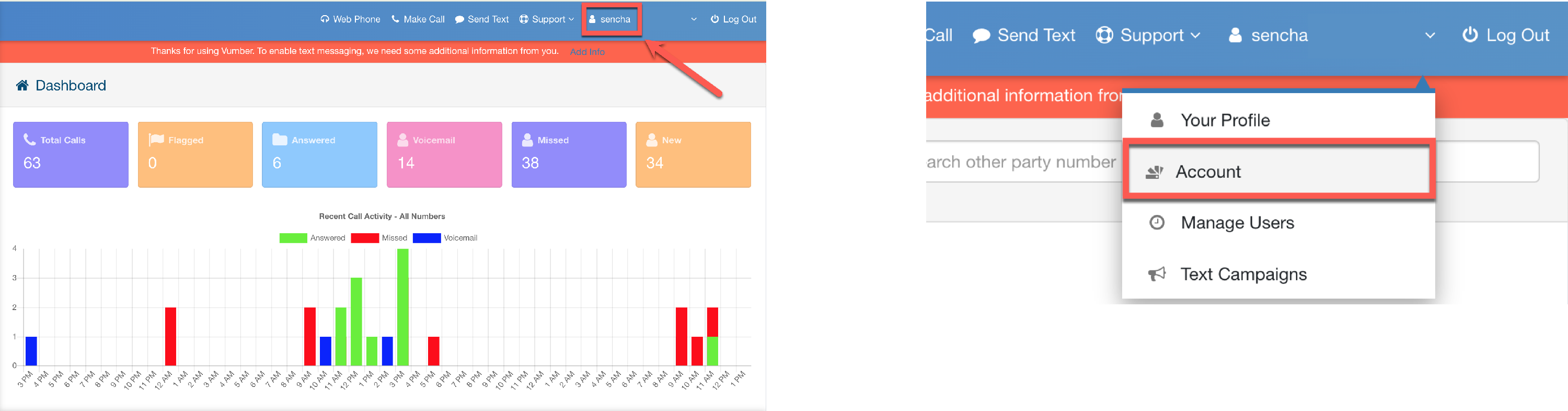
- Log in to your account by visiting the Vumber Dashboard at https://app.vumber.com.

- Click on your username in the top menu bar, then choose "Account" from the dropdown menu.
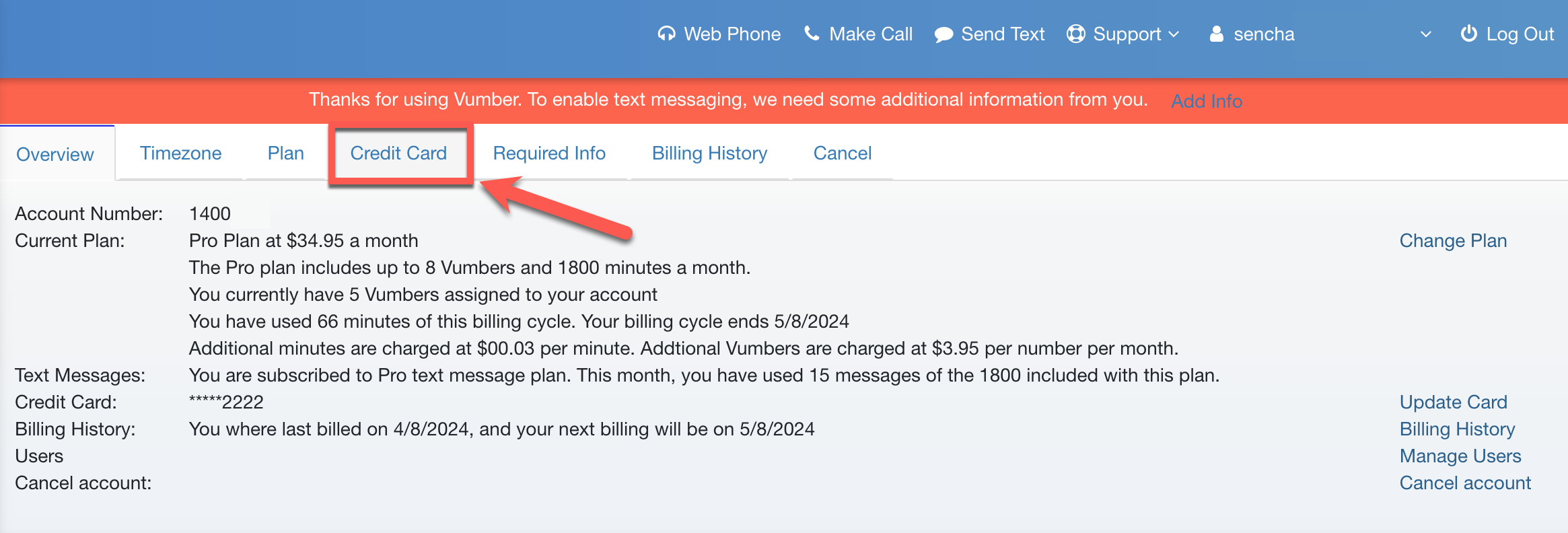
- Click on the "Credit Card" tab at the top, or select the "Update Card" option located on the far right.
- Input your new card details in the provided fields.
- Hit 'Save Credit Card' at the bottom of the page to finalize the update.
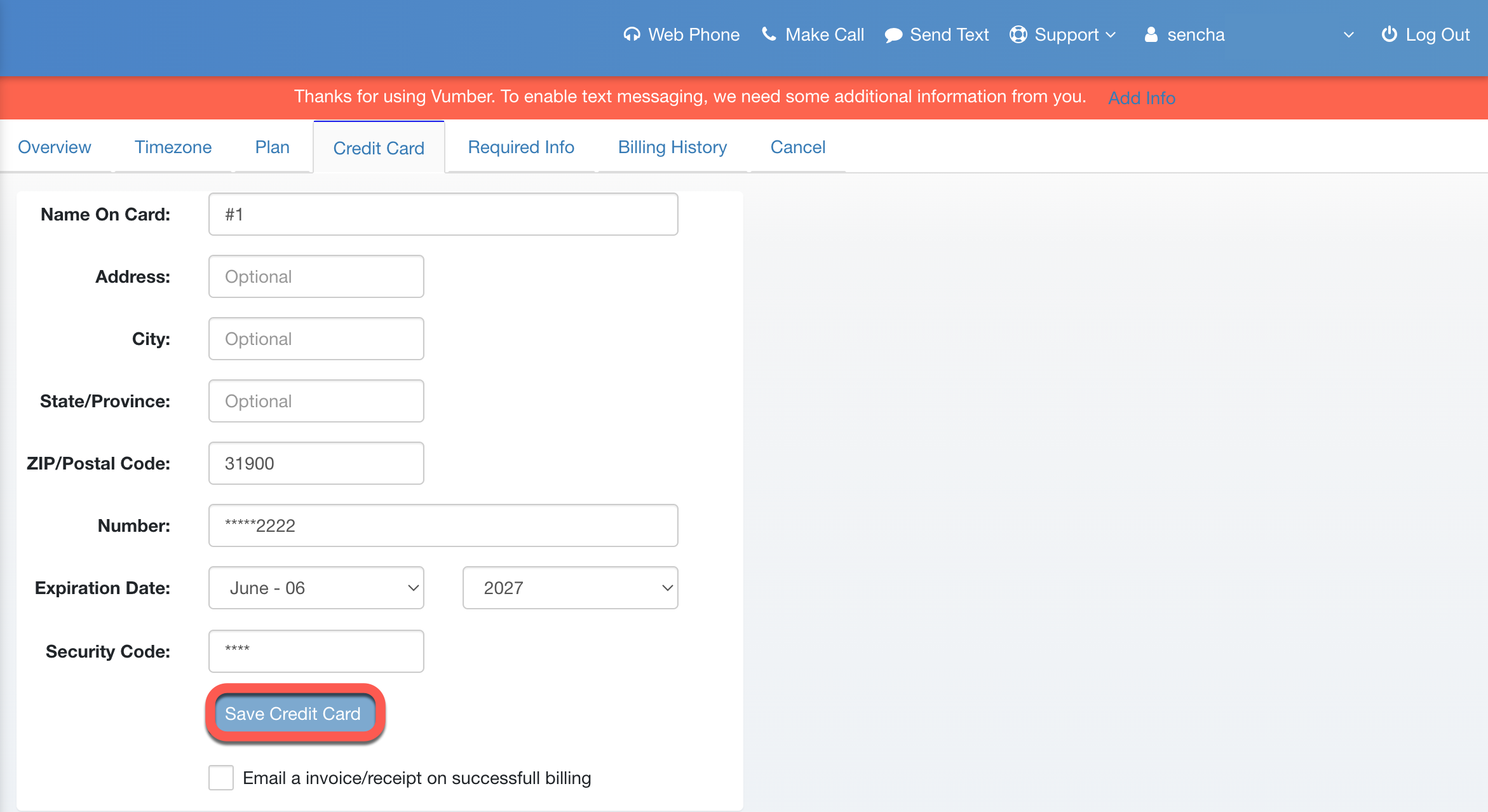
Before saving your new card, you have the option to check a box that allows you to receive your invoice via email each time your card is charged. This can be a convenient way to keep track of your expenditures.
If you encounter any issues or need further assistance, feel free to reach out to our support team.
The Vumber Team