
How to Save Images from Text Messages in the Vumber App
Need to save images from text messages received through the Vumber app? Whether it's a critical business document or a memorable photo, here’s how you can easily download these images directly to your device.
Steps to save images through the Vumber App:
- Open the Vumber app on your mobile device.
- Tap the "Messages" tab located at the bottom of the screen.

- Find and tap on the message that contains the image you wish to save.
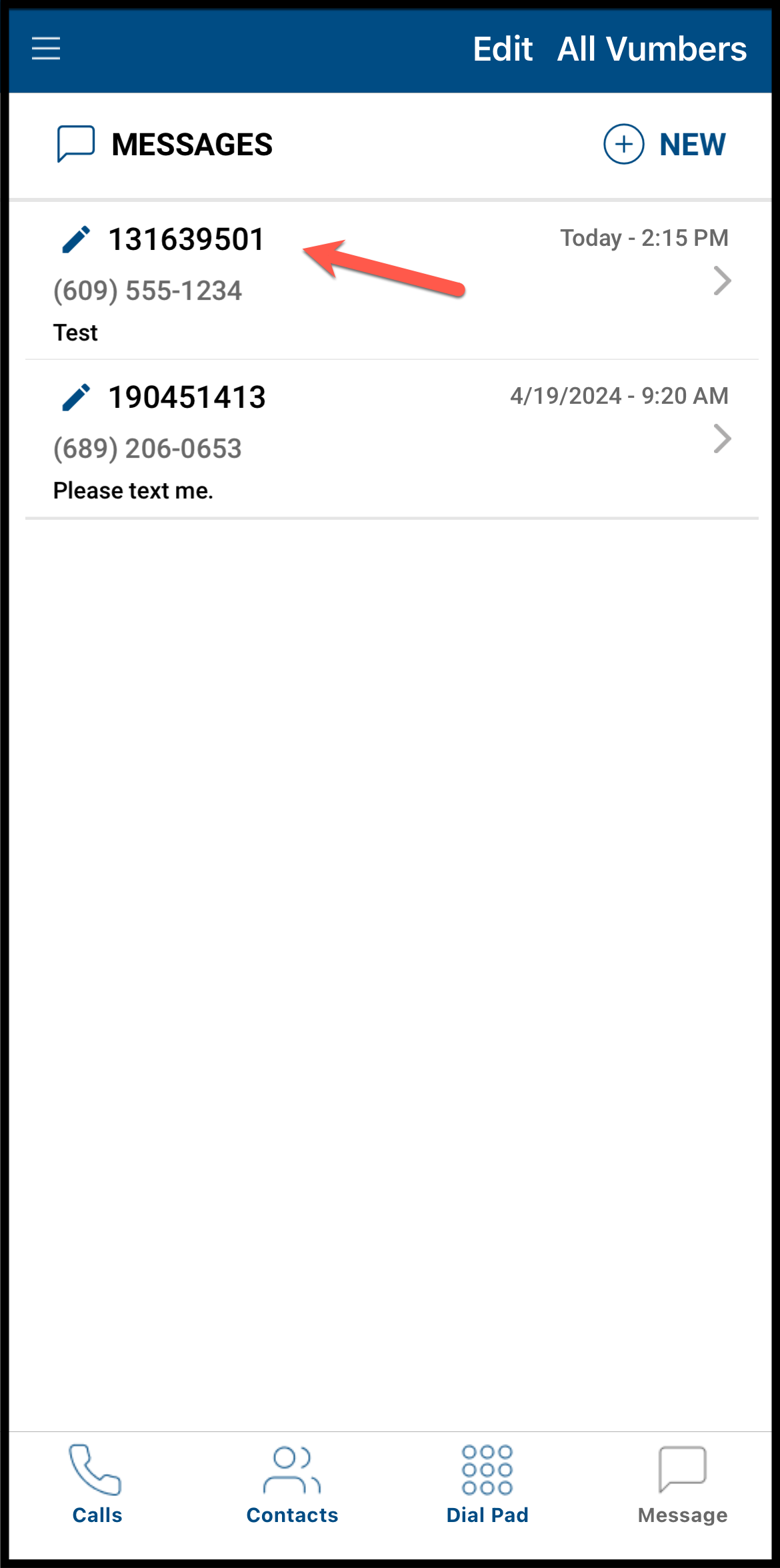
- Tap the image to enlarge it.
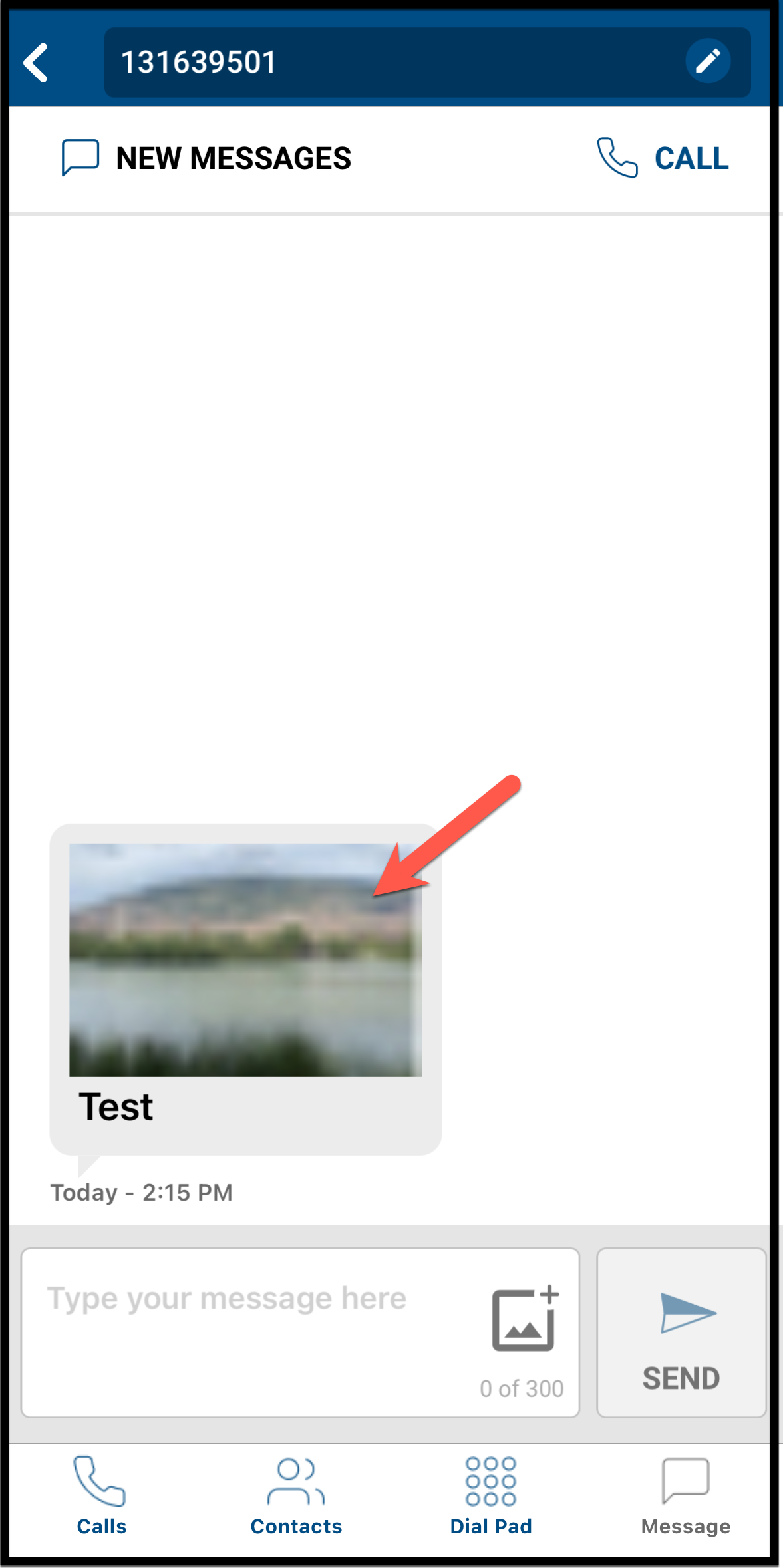
- Save the Image:
- On iOS Devices: While viewing the image in full size, tap the share icon located at the bottom left of the screen and select "Save Image" from the share options.
- On Android Devices: Press and hold on the image displayed in full size to prompt a save option. Select "Download image" or "Save image" depending on your device specifics.
Remember to always respect privacy and copyright when saving and using images. Ensure you have the proper permissions to retain and distribute the images you download.