
How to Give your Vumber a Nickname
Personalizing your Vumber numbers with nicknames can simplify the management of multiple lines, making it easier to identify each one quickly and efficiently. Here’s how you can assign nicknames to enhance your organization.
Steps to Assigning a Nickname through the Vumber App:
- Open the Vumber app on your mobile device.
- Tap the "Hamburger menu" icon in the top left corner.
- Select "My Numbers" from the menu options.

- Find the number you wish to assign a nickname to and select "Configure" next to it.

- In the configuration menu, tap on "Settings".
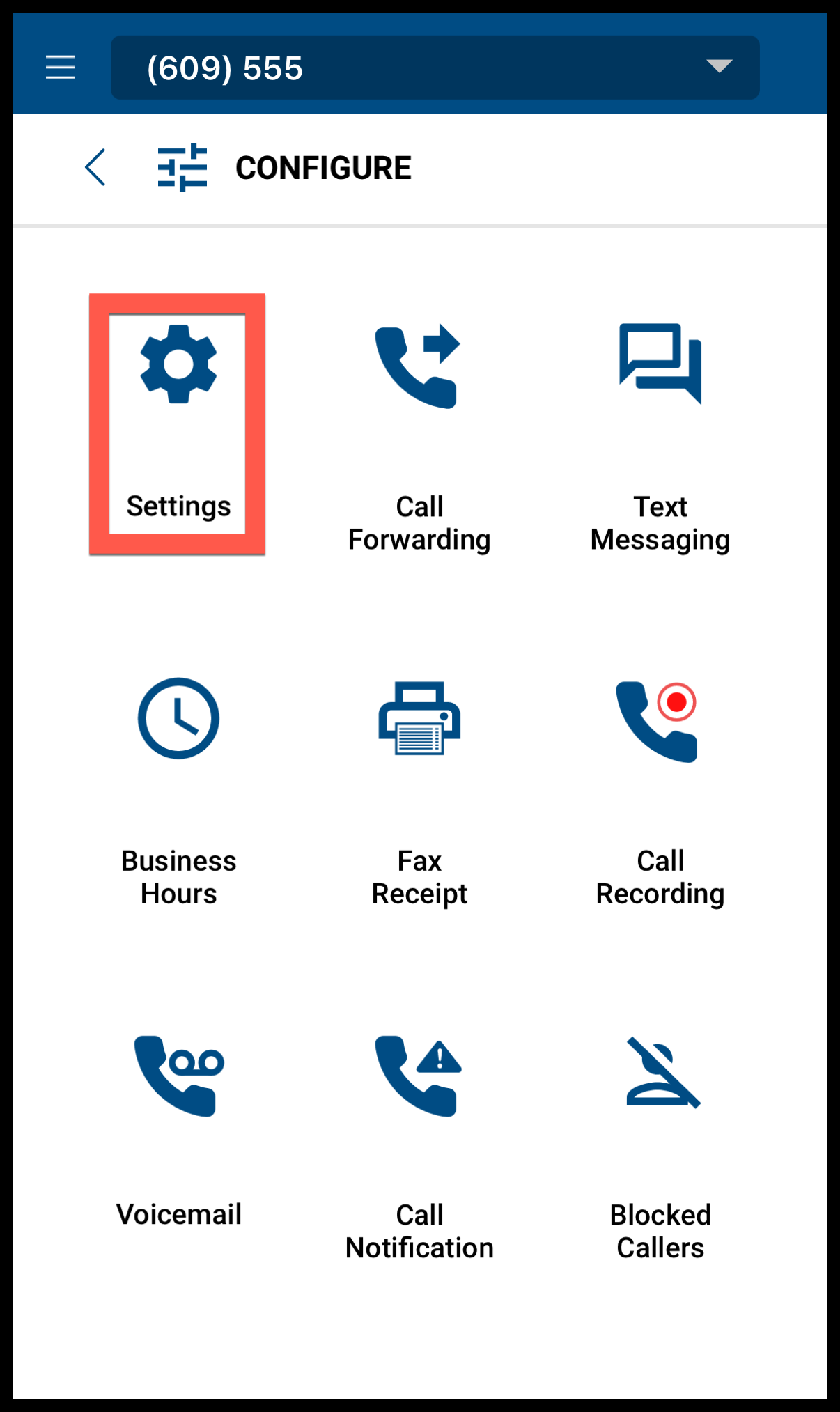
- You will see a text box under "Give your public number a description". Click the pencil icon and enter the desired nickname here.
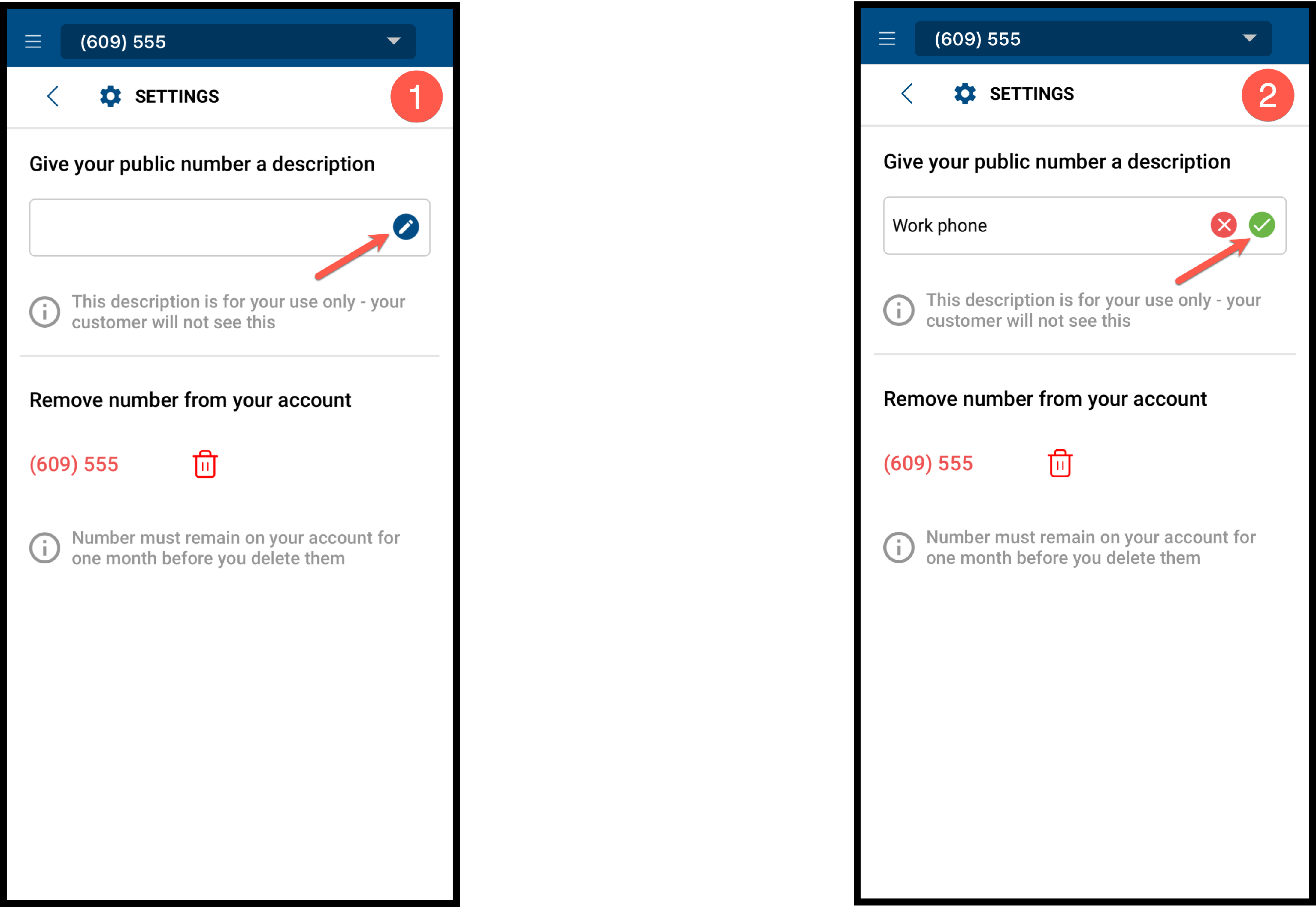
These nicknames are strictly for your personal use within the Vumber app. They will not be visible to others when you make calls or send texts.
Through the Vumber Dashboard:
- Log in to your account at https://app.vumber.com.

- Click on "My Numbers" from the menu on the left side.

- Click "Configure" next to the number you wish to assign a nickname to.

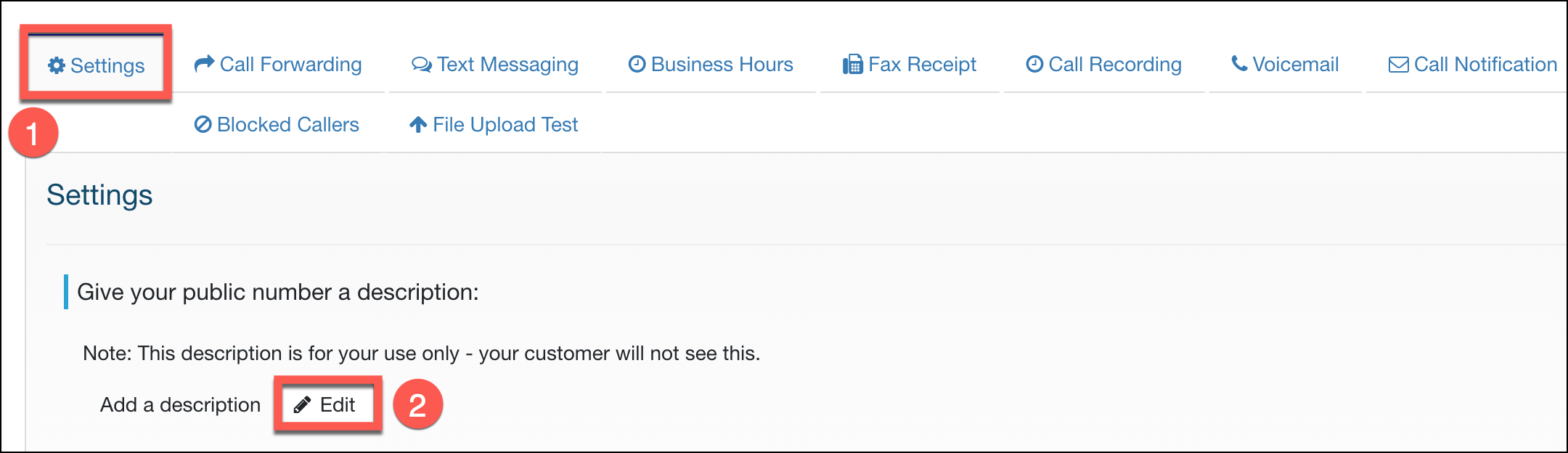
- Navigate to the "Settings" tab.
- Click the "Edit" button beside the add a description section.
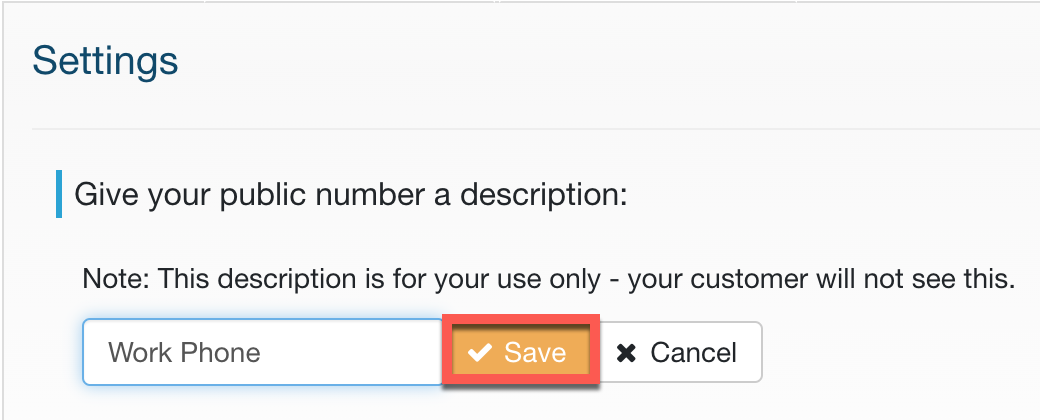
- Hit "Save" and your nickname is ready.
If you encounter any issues or need further assistance, feel free to reach out to our support team.
The Vumber Team