
How to Add a New Vumber From the Dashboard
Expanding your communication channels has never been easier with Vumber. Adding a new Vumber allows you to effortlessly manage additional numbers for your business or personal use, enhancing your accessibility and organization.
To add a new Vumber through the portal dashboard, follow these steps:
- Log in to your account at https://app.vumber.com

- Navigate to the dashboard menu on the left-hand side and select "My Numbers."

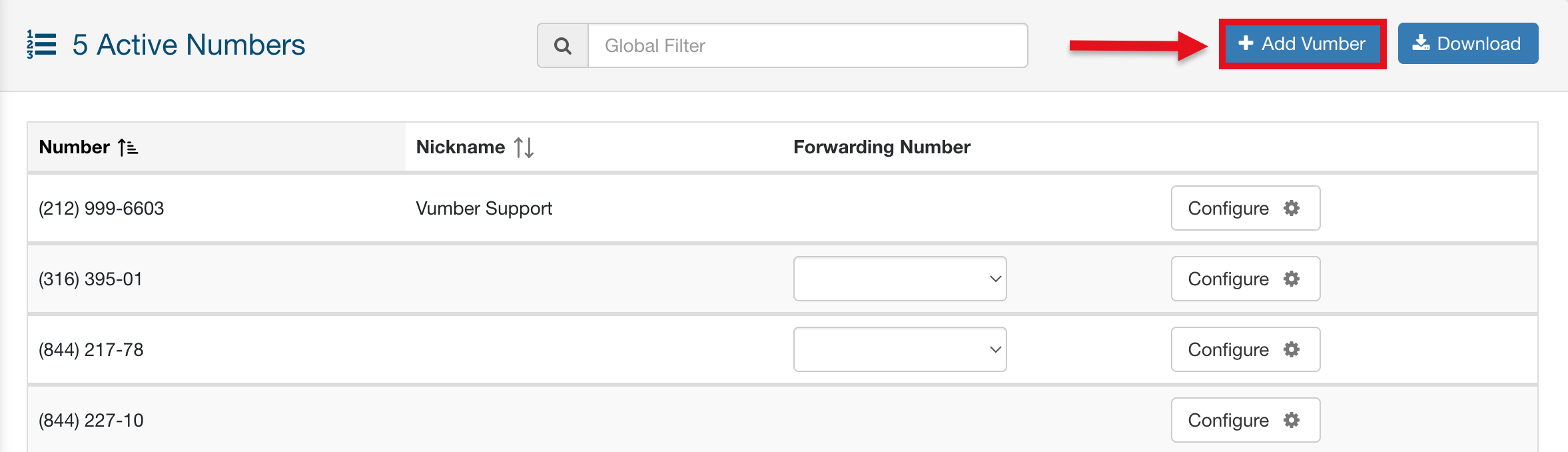
- Click on the "Add Vumber" option located at the top right corner of the screen, identified by a plus icon.
- Choose how you would like to search for your new number from the available options.
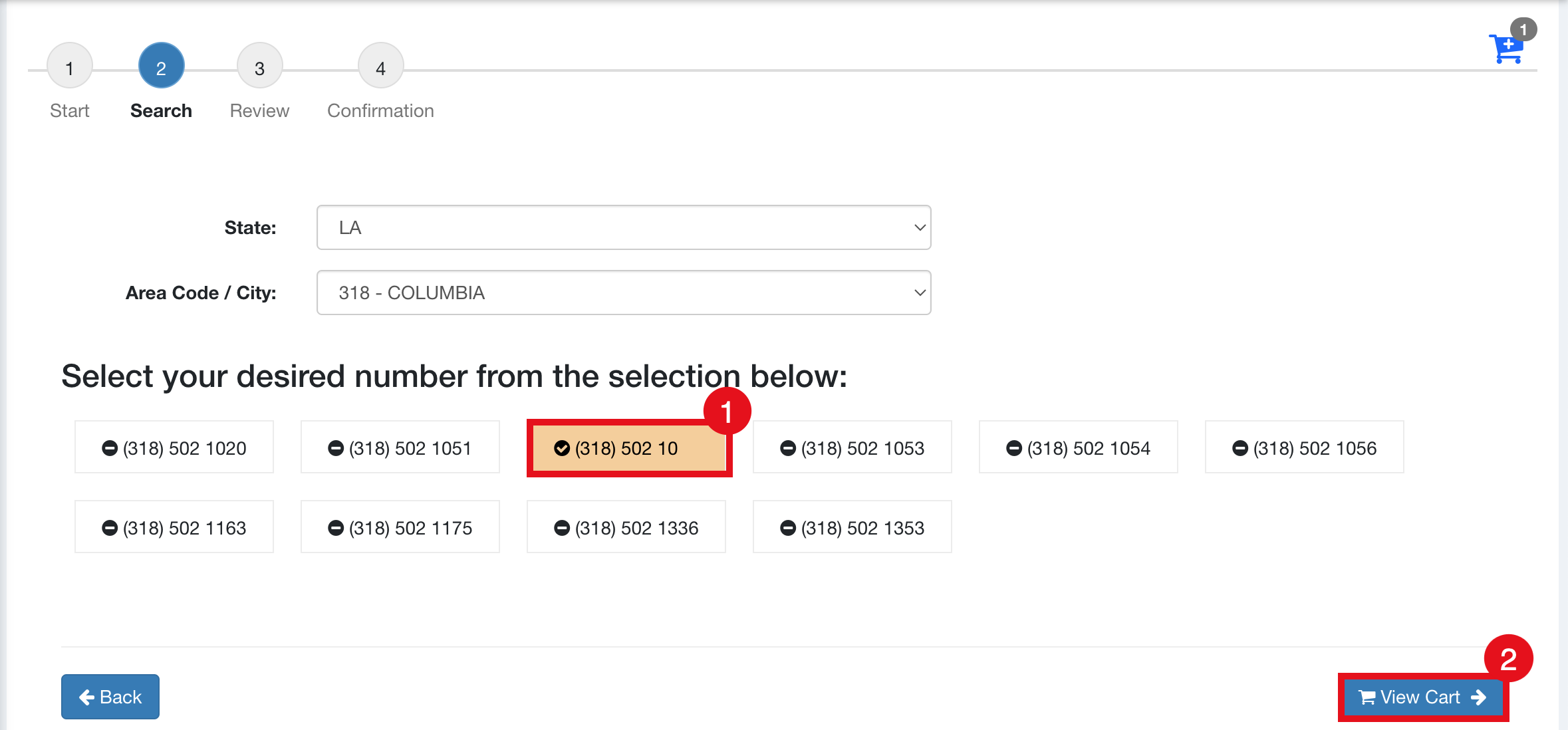
- Select the desired new number from the search results.
- Once you've chosen your new number, click on "View Cart" to proceed to the next step.
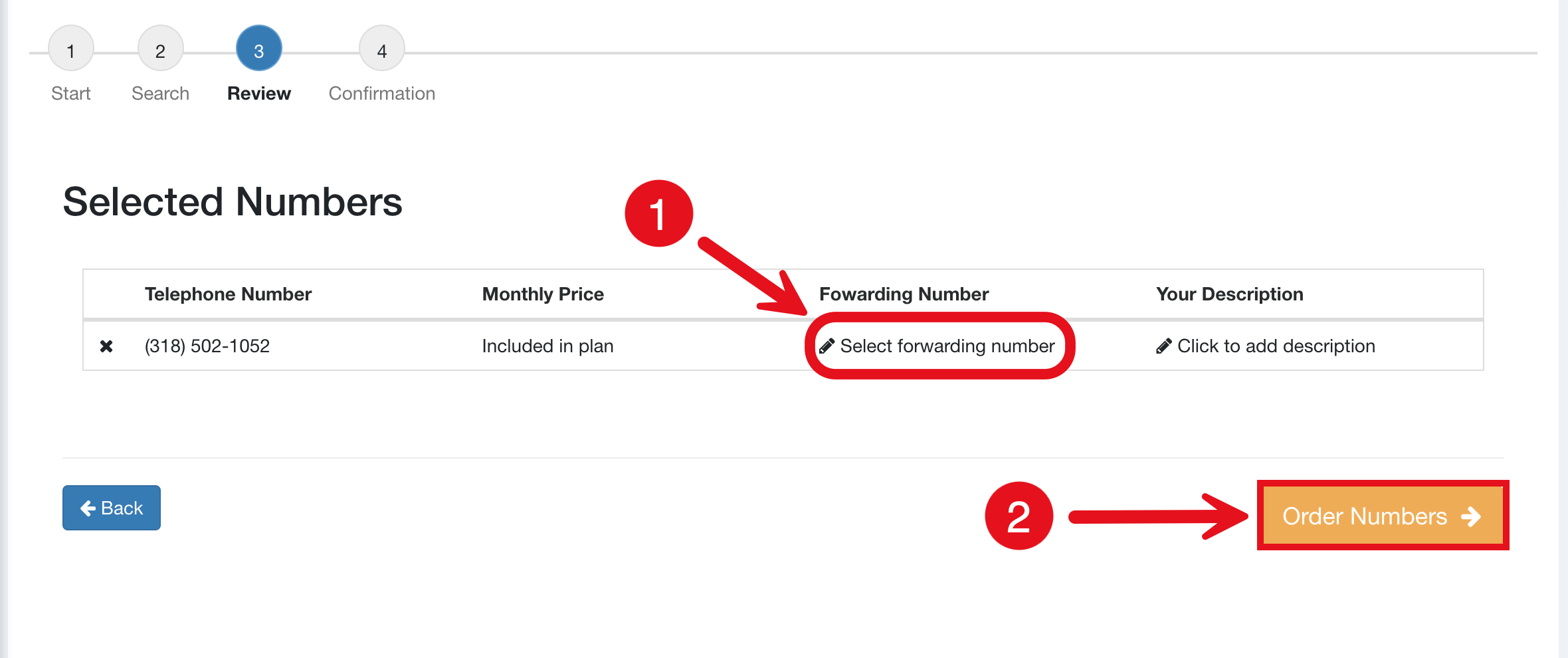
- Next, choose the forwarding number you'd like to associate with the new Vumber from the drop-down menu under the "Forwarding Number" tab with the pencil icon beside it.
- After selecting the forwarding number, hit the "Order Numbers" button located in the orange box to finalize your selection.
Your new number will now be live on your account.
If you encounter any issues or need further assistance, feel free to reach out to our support team.
The Vumber Team