
How do I forward calls to the Vumber App?
Forwarding calls to the Vumber app enables seamless call management directly from your mobile device.
When forwarding calls to the Vumber app, please note that you have the option to use either your phone line or VoIP (Voice over IP) for outbound calls. By default, calls are made over your normal cell phone line, while VoIP calling can be activated in the Vumber app settings if preferred.
Forwarding Calls to the Vumber App with the App:
- Open the Vumber app on your mobile device.
- Tap the "Hamburger menu" icon located in the top left corner
- Select "My Numbers" from the menu.

- Choose the number you want to forward calls to by tapping "Configure" next to it.

- Tap on "Call Forwarding" in the settings.

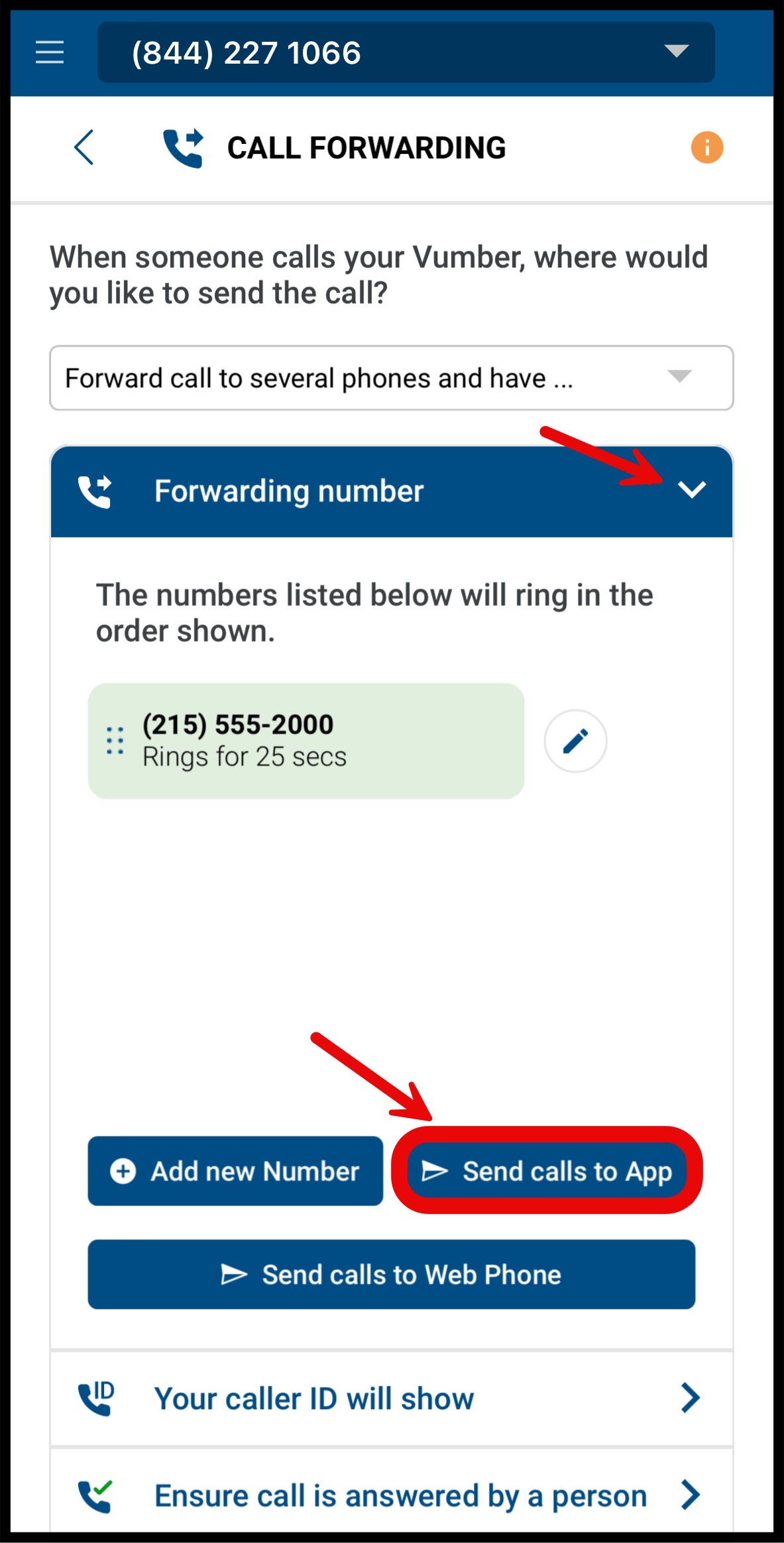
- Under "Forwarding Number," select "Send Calls to App."
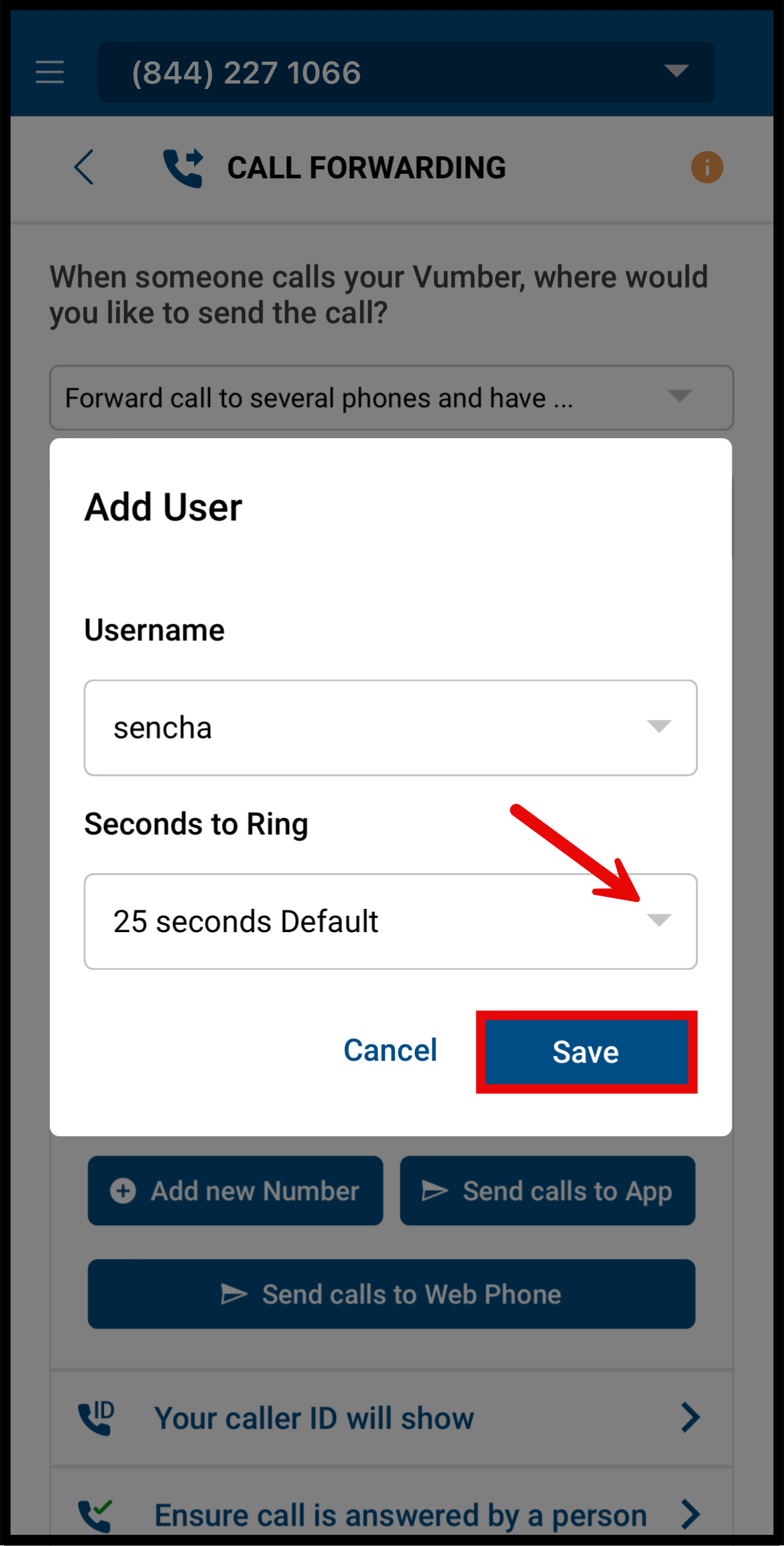
- Choose your desired seconds to ring time before voicemail and hit "Save."
- Hold your finger on the "Vumber App" option and then slide it to the top.
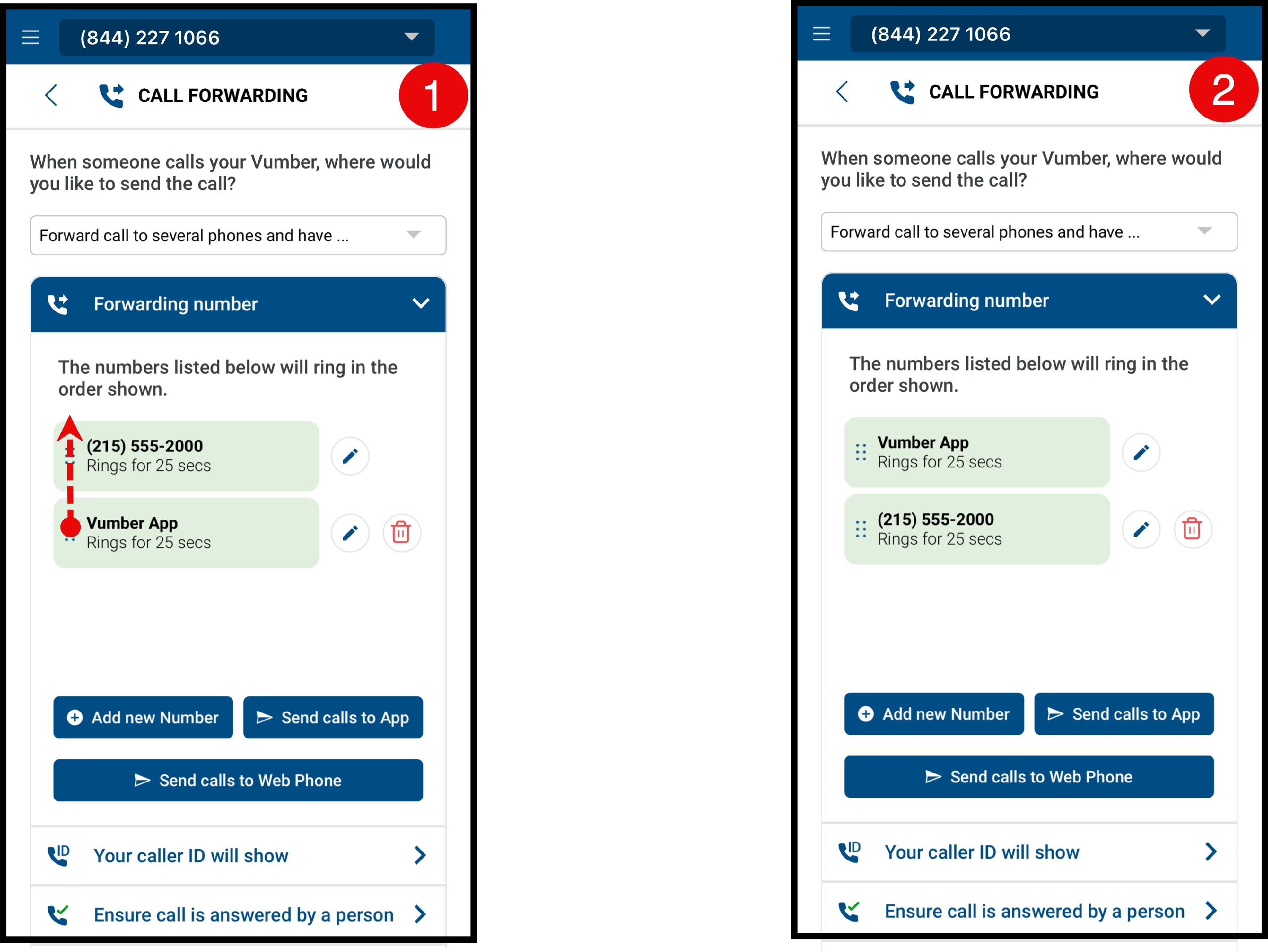
Now, any calls to this number will be forwarded to your Vumber app.
Forwarding Calls to the Vumber App using the dashboard:
- Log in to your account on vumber.com.

- Select "My Numbers" from the menu on the left of the screen.

- Choose the number you want to forward calls to by clicking on it or the "Configure" button.

- Click on "Call Forwarding" from the tabs.

- You will see 3 options with a blue plus icon beside them.
- Click the "Send Calls to App" option.

- Choose your desired seconds to ring time before voicemail and hit "Save."

- Select the “Vumber App” option and drag it to the top.

Now, any calls to this number will be forwarded to your Vumber app.
If you encounter any issues or need further assistance, feel free to reach out to our support team.
The Vumber Team